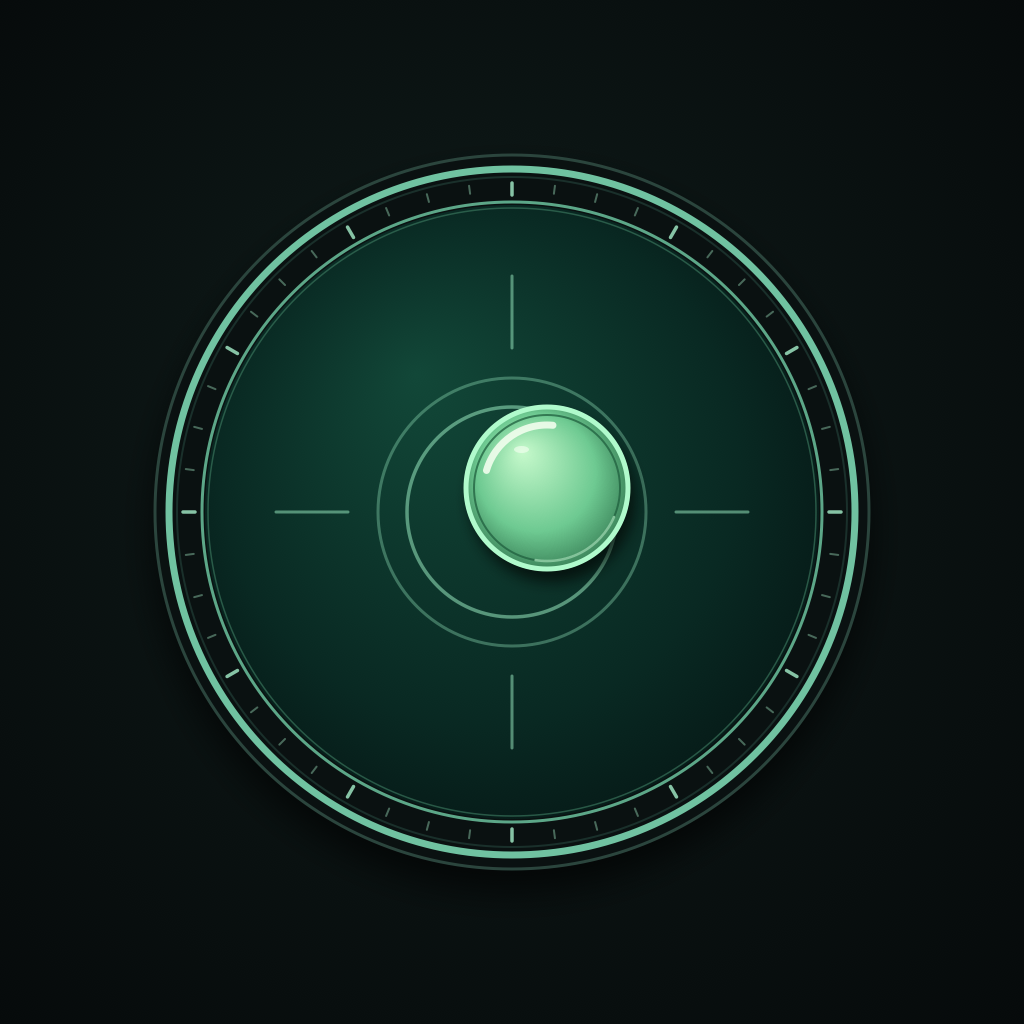
Measure a surface
- Place your device face up, resting evenly on the surface.
- Choose Surface to measure both axes and the total inclination.
- Adjust the surface until the bubble is centered and the reading shows LEVEL.
Cases and camera bumps can affect measurements. Check that the device makes even contact with the surface.
Check one axis
Choose Horizontal to measure tilt along the screen’s left-to-right axis. Keep the device face up and align its edge with the line you want to check. The axes follow the screen’s orientation.
Calibrate and hold
- Calibrate
- Save the current surface as your zero reference. Calibration stays on your device between app launches.
- Reset calibration
- Open Settings and tap Reset calibration to return to the gravity reference.
- Hold
- Tap the lock button to freeze the reading and bubble. Tap it again to resume updates.
Adjust your settings
In version 1.1, open Settings → Appearance and choose System, Light, or Dark. System is the default and follows your device’s appearance. Your choice is saved on your device and remembered when you reopen the app.
Choose a level tolerance of ±0.1°, ±0.5°, or ±1.0°. This sets the range considered level; it does not guarantee sensor accuracy.
Settings also includes Haptics when level for supported devices and Keep screen awake while you use the app.
Troubleshooting
The reading stays fixed
The reading may be on hold. Tap the lock button to release it.
A flat surface shows a tilt
Check the device’s contact points and remove any uneven case. Reset a previous calibration in Settings before checking against gravity. If you want a relative measurement, place the device on your chosen reference surface and tap Calibrate.
A tilted surface reads zero
A custom reference may be active. Open Settings and tap Reset calibration to measure against gravity.
The app says DEMO or DRAG TO EXPLORE
The app does not have usable motion input. Dragging explores the 3D visual; demo mode does not measure real surfaces. The iOS Simulator always uses this mode.
On a physical device, reopen the app to retry. If demo mode persists, contact support with the device model and software version. Demo and physical-device calibration are stored separately.
The app says WAITING FOR SENSOR
Keep the app active briefly to receive a fresh reading. If it does not arrive, reopen the app. Contact support if the issue continues.
There is no vibration
Enable Haptics when level in Settings. The device must support haptic feedback. Haptics indicate a transition into the level range rather than vibrating continuously.